
Copilot agent with iot
Overview
I have deciede to apply for a hackathon from Microsoft Korea. The main theme is copilot agent. I think MS really wants to get a chance of the copilot from this Hackerthon. As I am a engineer in a partner company of Microsoft, this is a good chance to take account into copilot’s potential.
So, I was looking for collegues. Because this Hackerthon required team of three to register. And while brainstorming, we thought it might be interesting to control company facilities such as lights and air conditioning with Copilot.
Here is the architecture:
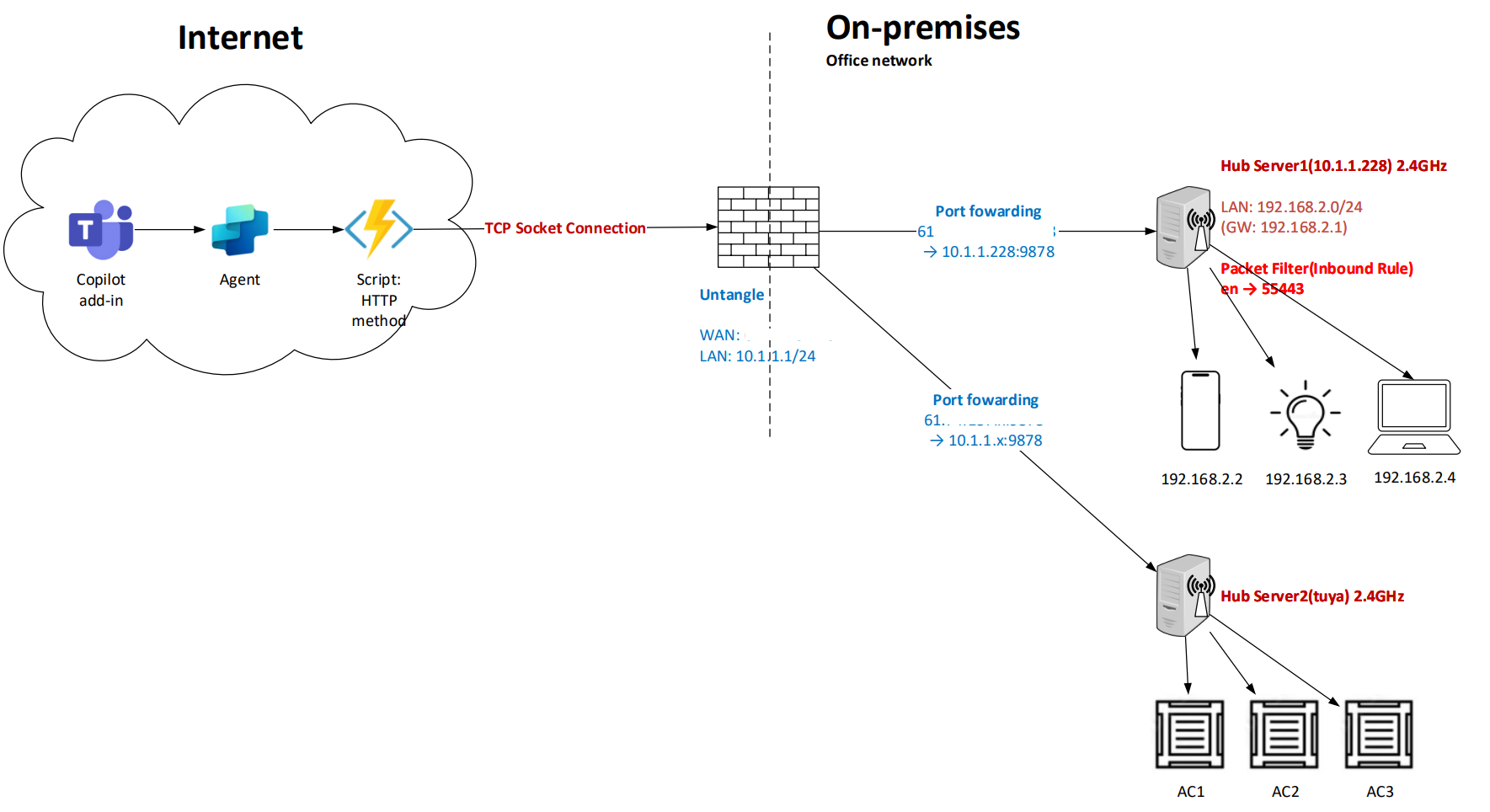 From the previews I set up, in this post I’m only presenting the light bulb.
1. Bulb control(Yeelight)
1. Prerequisite
- Connect the bulb with your mobile application and turn LAN control on
- Use the same LAN when you are using device for control
2. Discover the Bulb and control using python module
Yeelight Python documentation: https://yeelight.readthedocs.io/en/latest/
- You can use this command to discover any IoT bulbs in your LAN. You can specify the Bulb’s IP address.
```python
Import module
from yeelight import discover_bulbs, Bulb
Discover bulbs
bulbs = discover_bulbs()
- Turn on/off based on the bulb's status from its property.
```python
# Get properties
bulb = Bulb("ip: x.x.x.x, port: 55443")
properties = bulb.get_properties()

# Light status
getLightStatus = properties["power"]

# Light on/off
if getLightStatus == 'on':
    bulb.turn_off(5)

elif getLightStatus == 'off':
    bulb.turn_on(5)
    bulb.set_brightness(100)
3. Connect with TCP socket and control with JSON
Based on the document below, you can control with its IP address using TCP socket connection.
Yeelight specification: https://www.yeelight.com/download/Yeelight_Inter-Operation_Spec.pdf
telnet <Bulb's IP address> 55443

# After the telnet connection established,
# Send JSON data that includes command and its parameter
{"id":1,"method":"set_power","params":["on","smooth",500]}
{"id":1,"method":"set_power","params":["off","smooth",500]}
{"id":1,"method":"toggle","params":[]}
If you are using PowerShell, for your reference:
param($Request, $TriggerMetadata)

# Bulb IP & Port
$ip = "x.x.x.x"
$port = 55443

# JSON data
$jsonCmdlet = '{ "id": 1, "method": "set_power", "params": ["on", "smooth", 500] }' + "`r`n"

try {
    # TCP Connection
    $client = New-Object System.Net.Sockets.TcpClient
    $client.Connect($ip, $port)

    # Network stream
    $stream = $client.GetStream()

    # Send command
    $buffer = [System.Text.Encoding]::ASCII.GetBytes($jsonCmdlet)
    $stream.Write($buffer, 0, $buffer.Length)

    # Response from bulb
    $reader = New-Object System.IO.StreamReader($stream)
    $response = $reader.ReadLine()

    # Close connections
    $reader.Close()
    $stream.Close()
    $client.Close()

    # Return HTTP response
    Push-OutputBinding -Name Response -Value ([HttpResponseContext]@{
        StatusCode = 200
        Body       = "Response from Yeelight: $response"
    })
}
catch {
    Push-OutputBinding -Name Response -Value ([HttpResponseContext]@{
        StatusCode = 500
        Body       = "Error: $($_.Exception.Message)"
    })
}
2. Hub server configuration
I just validate and get a proof that we can control the bulb from the outside of the office. But we need to set up hub server. Because the office network can not make 2.4GHz Wi-Fi that are used to IoT. So the traffic hub server recieved can be transmitted to Bulb IP address. The hub server is running the mac OS, the configuration is like:
You can identify the connected IPs provided from this hub server network(2.4GHz)
arp -a
And then open pf.conf file using VIM.
/etc/pf.conf
sudo vi pf.conf
Edit the file.(Press ‘i’ for edit(insert mode) and Press ‘Esc’ and enter :wq)
# 1) Option
set skip on lo0

# 2) Normalisation
scrub in all

# 3) Translate
rdr pass on en7 inet proto tcp from any to (en7) port 9878 -> 192.168.2.3 port 55443

# 4) Filtering
block in all
pass out all keep state
pass in on en7 proto tcp to (en7) port 9878 keep state
After checking and apply the new pf.conf file, execute the following command for each line:
sudo pfctl -nf /ect/pf.conf
sudo pfctl -f /ect/pf.conf
sudo pfctl -e
3. Prepare Azure fn and Copilot studio
Create the azure fn and upload the powershell script aboave.
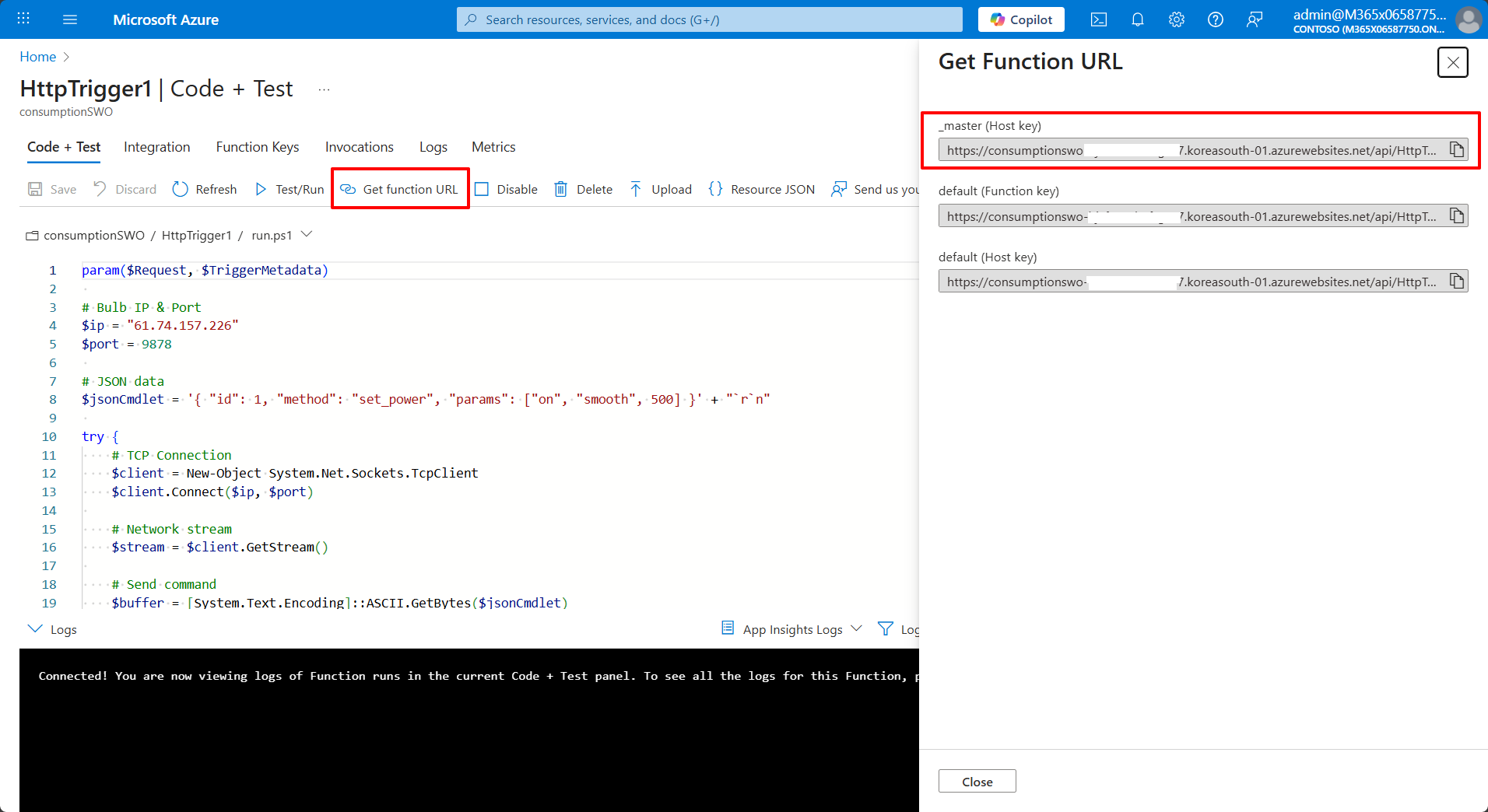 And go to copilot studio and call the azure fn powershell script when the keyword input from the agent’s prompt.
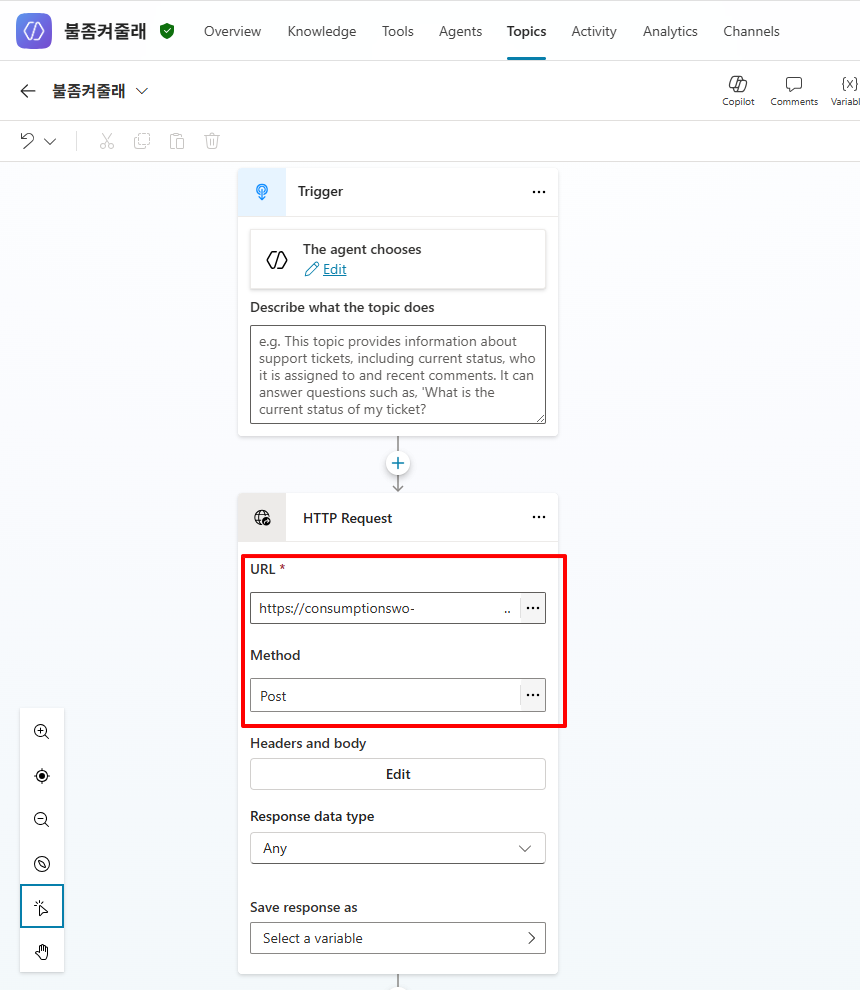
Result
You can check if the prompt works. See my linked in post. https://www.linkedin.com/posts/joseph-lee-870660260_%EC%BD%94%ED%8C%8C%EC%9D%BC%EB%9F%BF%EC%9D%84-%ED%99%9C%EC%9A%A9%ED%95%B4%EC%84%9C-iot-%EC%9E%A5%EB%B9%84%EB%93%A4%EC%9D%84-%EC%A0%9C%EC%96%B4%ED%95%98%EB%8A%94-%EB%B0%A9%EC%95%88%EC%9D%84-%ED%85%8C%EC%8A%A4%ED%8A%B8-%EC%A4%91%EC%9E%85%EB%8B%88%EB%8B%A4-activity-7367912344322002944-t3Gv?utm_source=share&utm_medium=member_desktop&rcm=ACoAAEArMtQBdLNrlmK8q6Pj3csifHuOJc_7yyo
Leave a comment