
Iis arr configuration with exsvr
Overview
For the exchange server, almote every clients will need to seperate the network traffic with 443 and 25. In this case, they need reverse proxy. I will use IIS ARR(Application request routing) service as an proxy server. So, here is the a diagram which shows you the architecture of the LAB for this post.
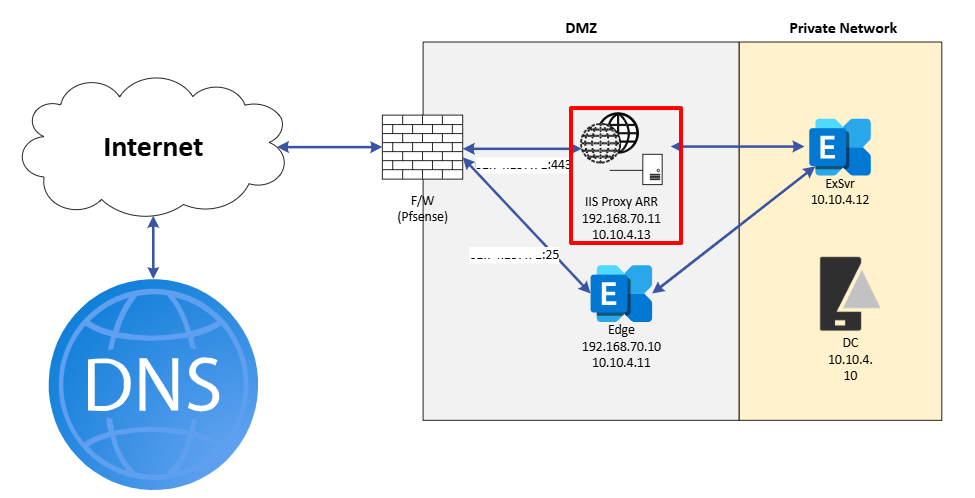 Make sure those server located in DMZ have to use two NIC obviously for the internet and private.
ref) Configuration IIS ARR for exchange server:
- https://techcommunity.microsoft.com/blog/exchange/part-1-reverse-proxy-for-exchange-server-2013-using-iis-arr/592526
- https://www.youtube.com/watch?v=d6mqaHkGb-E
0. Index
-
IIS Proxy ARR 1.1 Basic settings 1.2 Server Farms 1.3 URL Rewrite rules
-
Logs
-
Warning
-
Test
1. IIS Proxy ARR
I will skip the install steps..
1.1 Basic settings
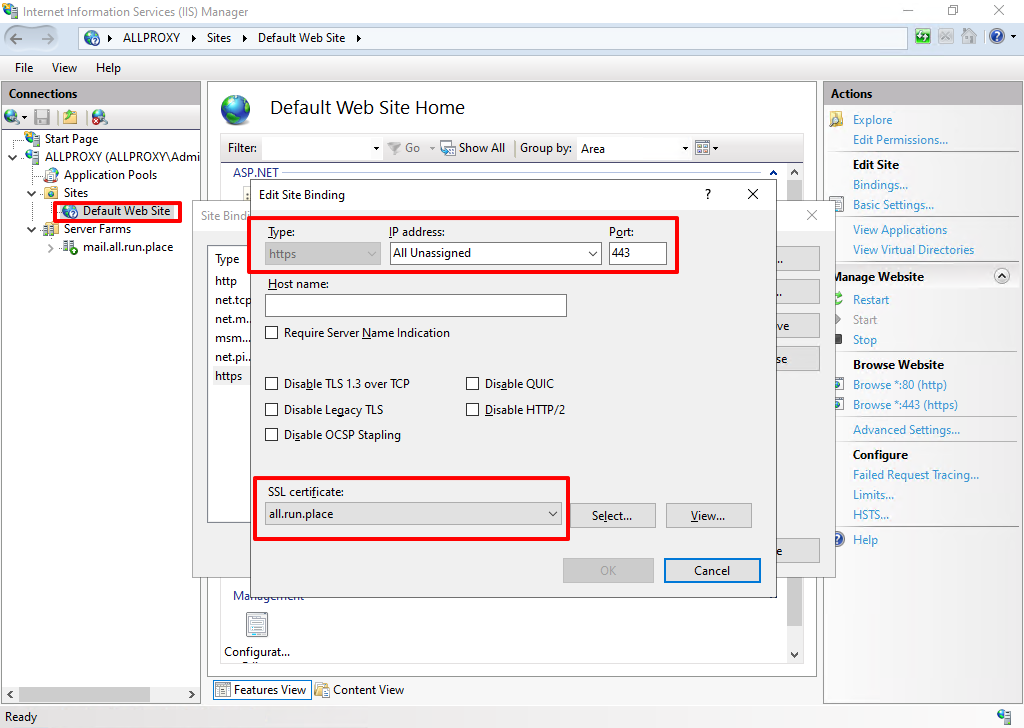
First of all, we need to install the exchange server’s public ssl certificate on the ARR server.
And go to “IIS manager > Sites > Default Web Site > Bindings > https > Edit”.
From here, you should assign the public ssl certificate with https.
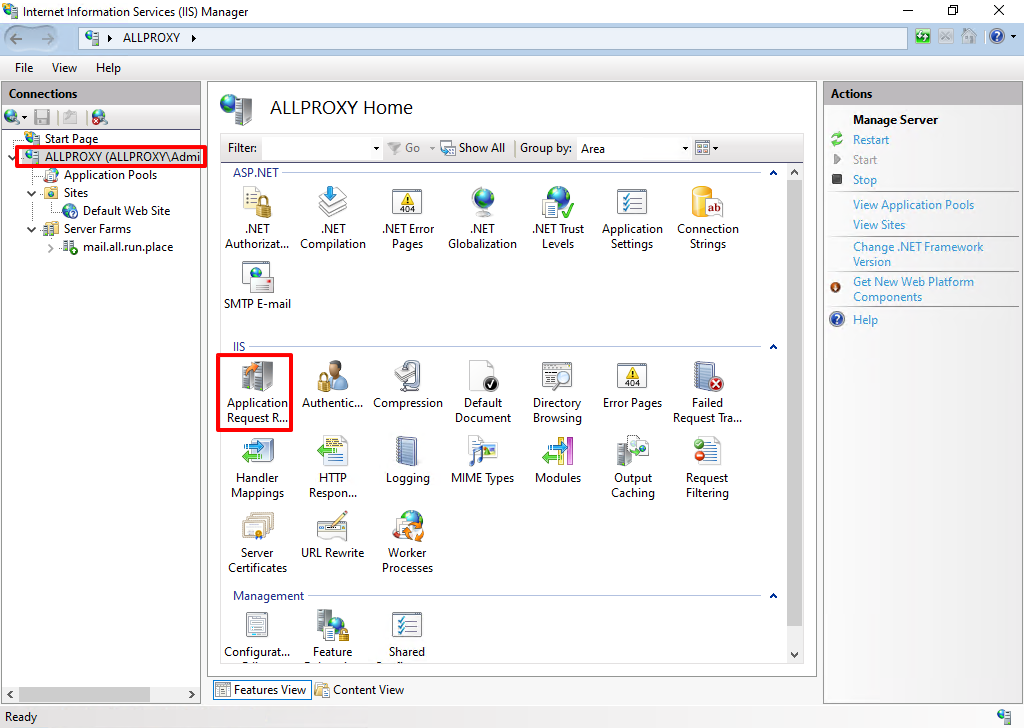
Second, Go to the Home > Application Request Routing Cache.
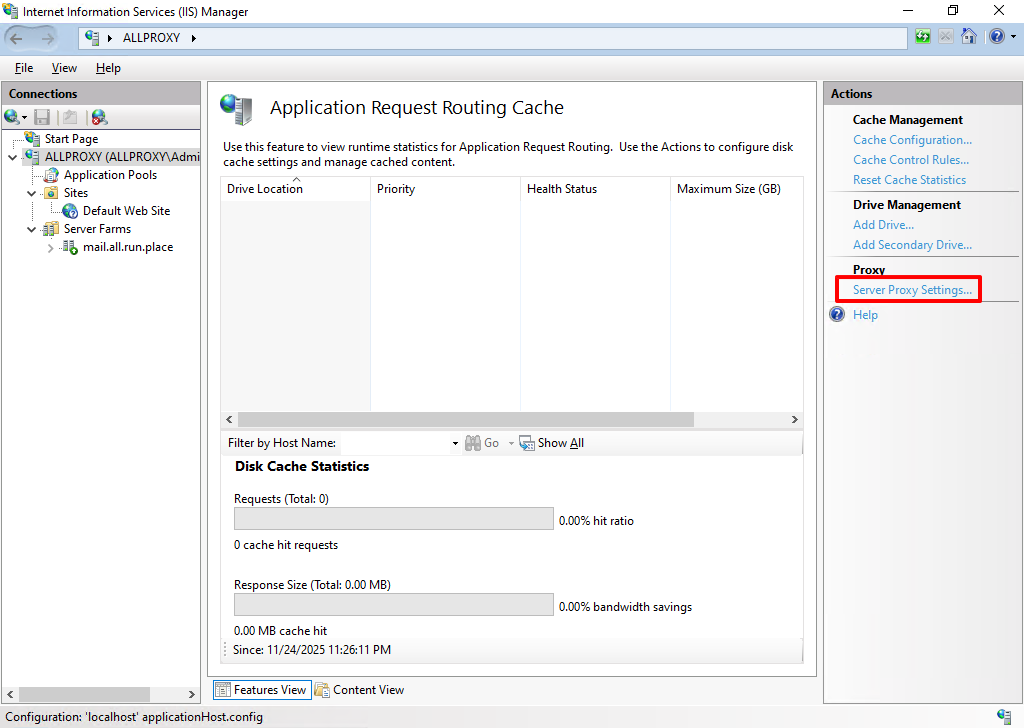
 go to server proxy settings.
 Check “Enable proxy”.
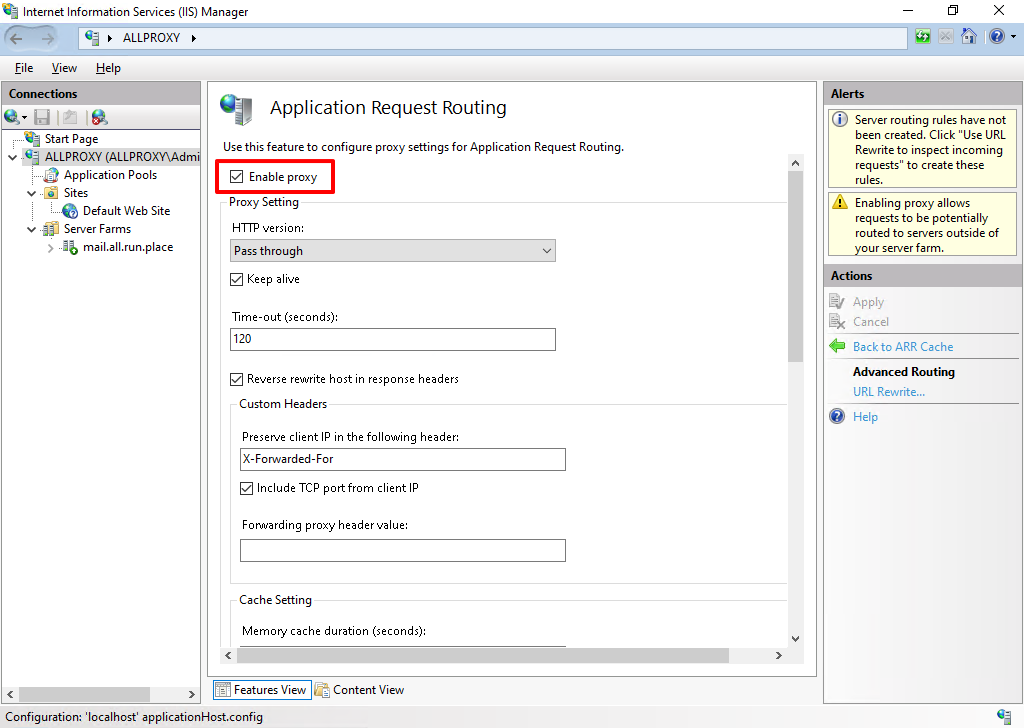
and lastly, create new server farms.
1.2 Server Farms
Once you created the server farms, you have few options there.
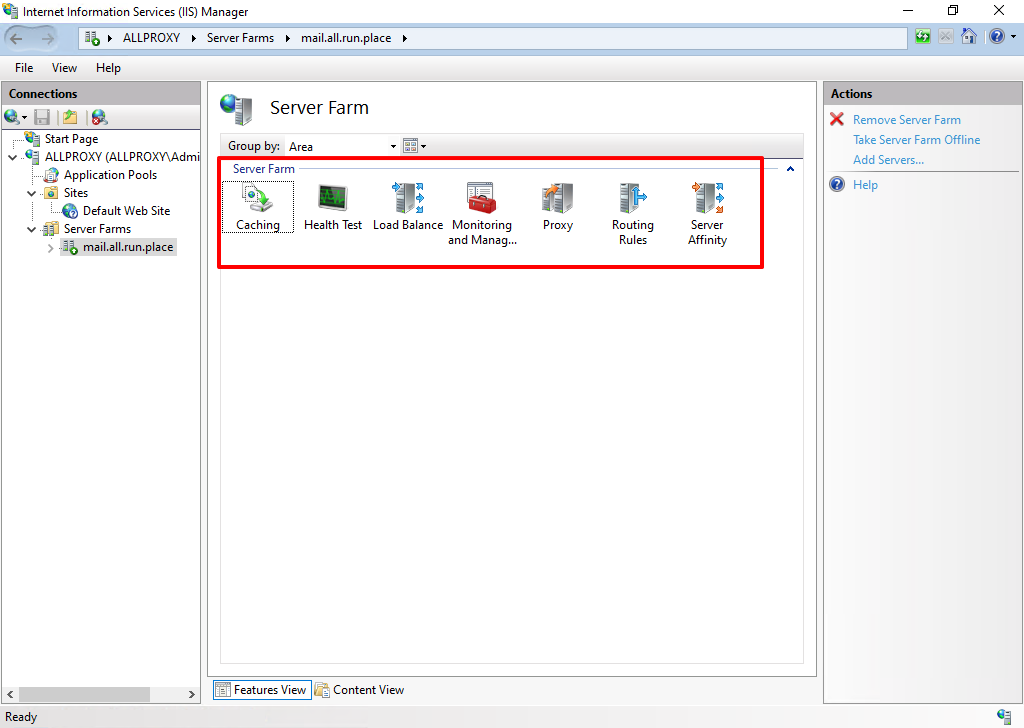
-
Caching, uncheck “Enable disk cache” and apply.
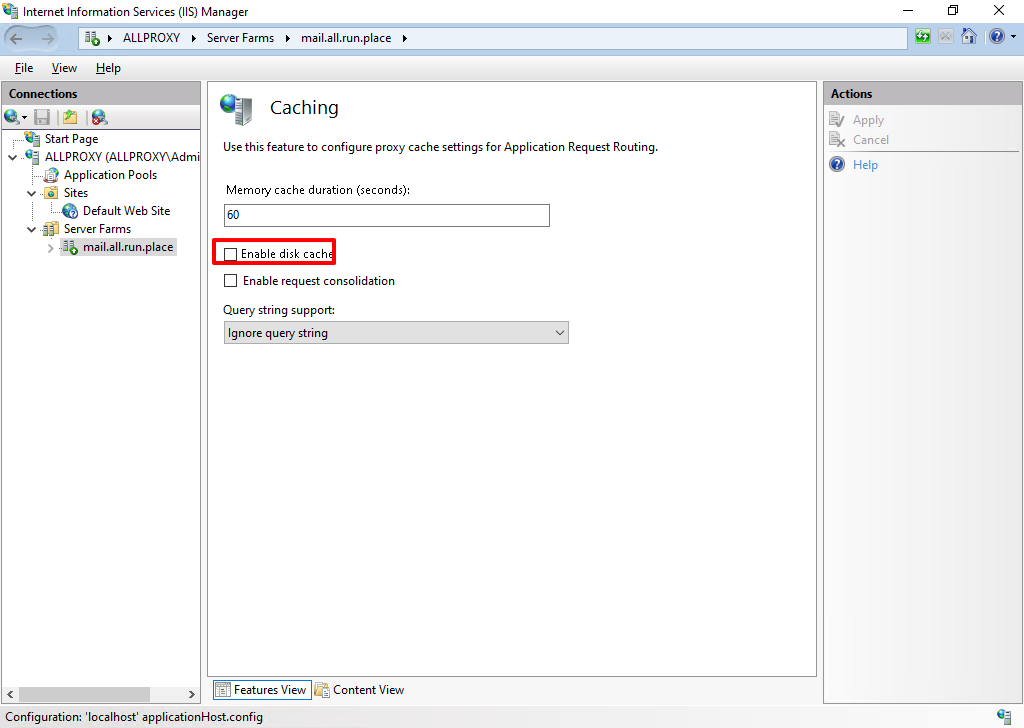
-
Health Test, enter your external exchange server https://FQDN/owa/healthcheck.htm
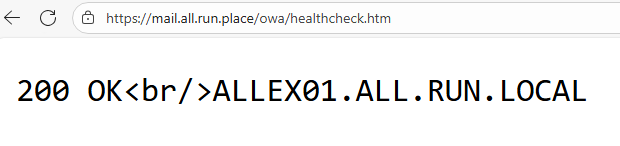
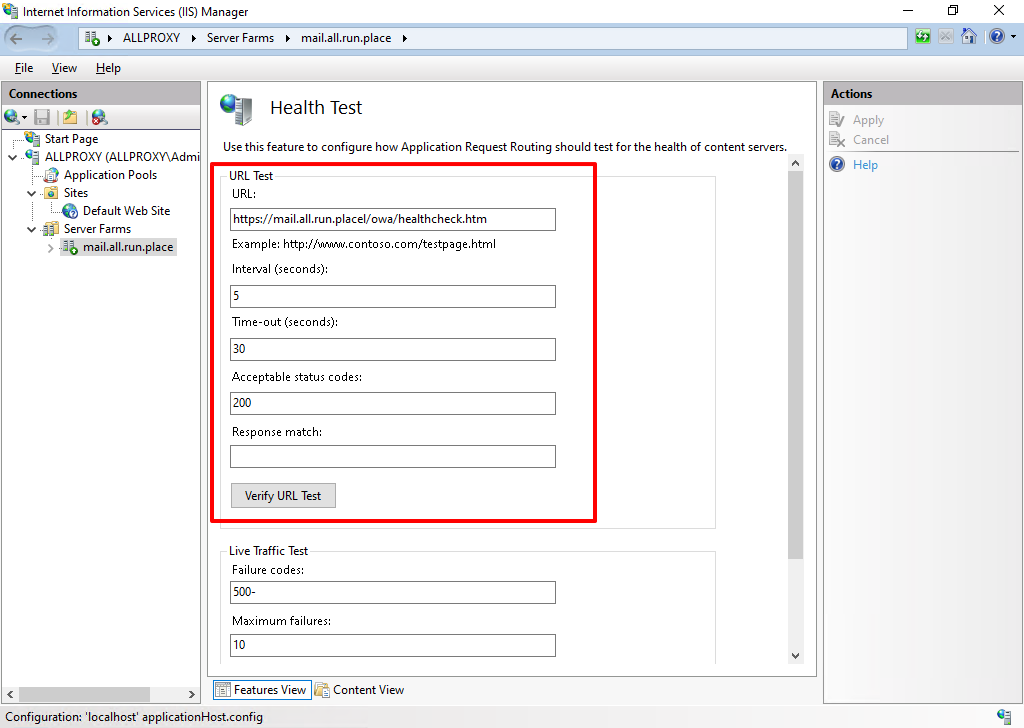
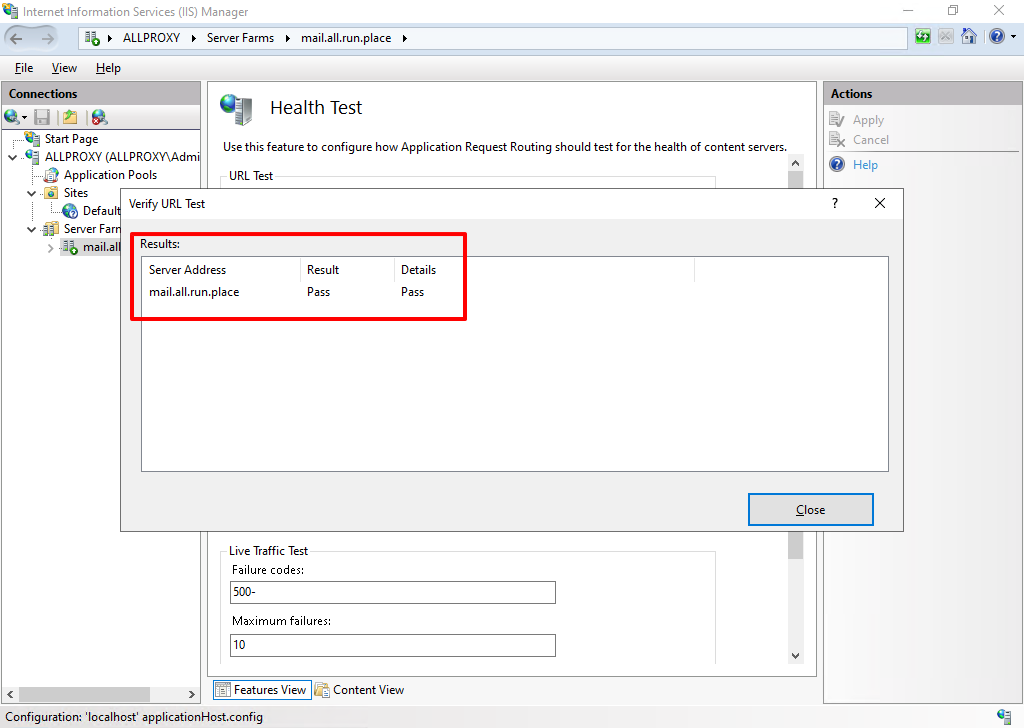
-
Monitoring and Management, once your health test have passed, your server will be available and Healthy.
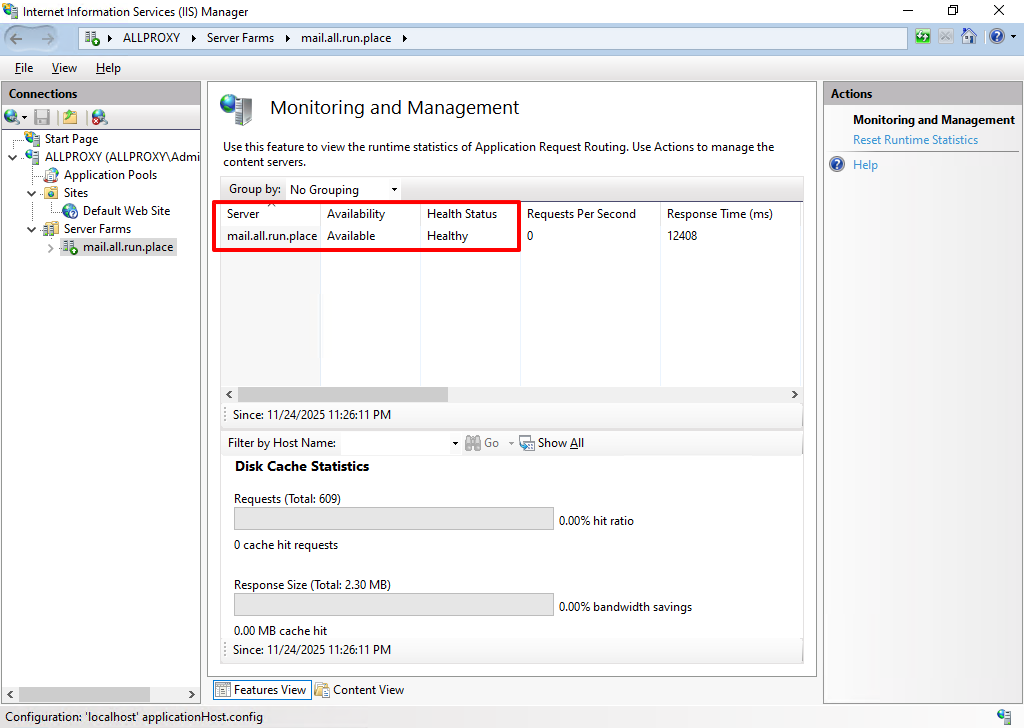
-
Proxy, Set as following image.
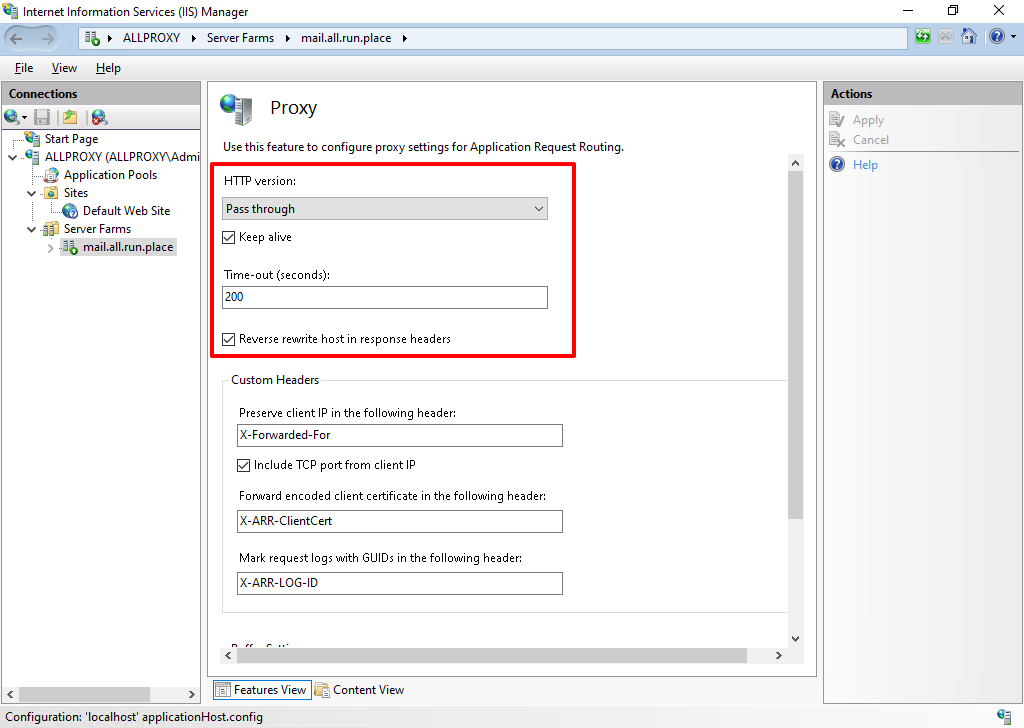
-
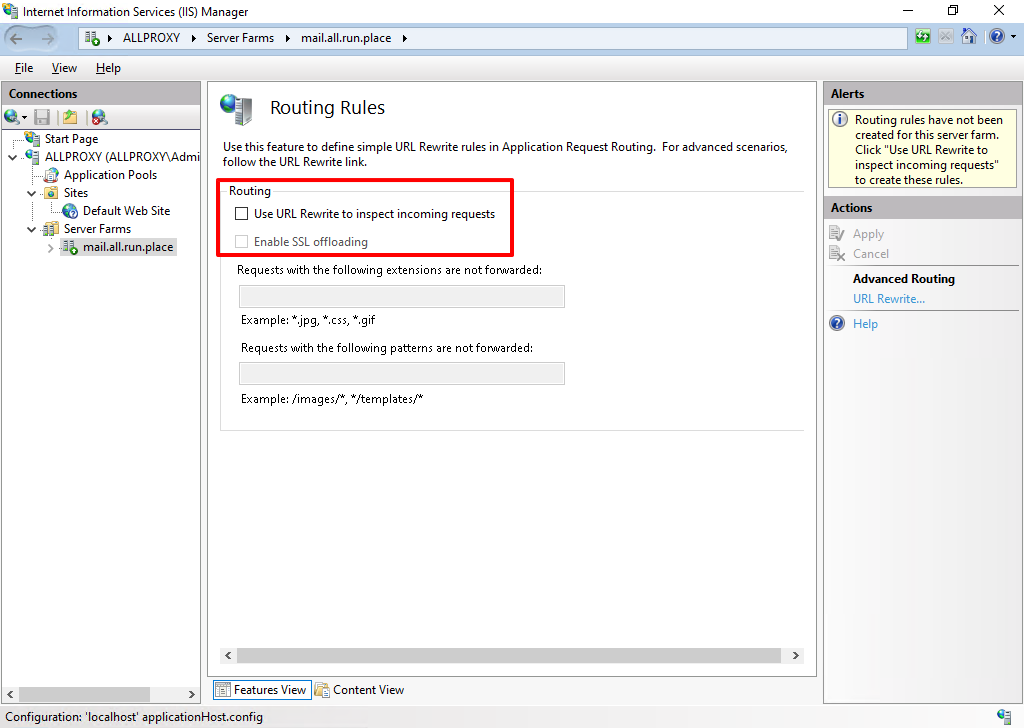
Routing Rules, uncheck both options.
1.3 URL Rewrite rules
Now, this is the important part in the whole configuration.
From the Routing rules in the server farms, go to URL Rewrite.
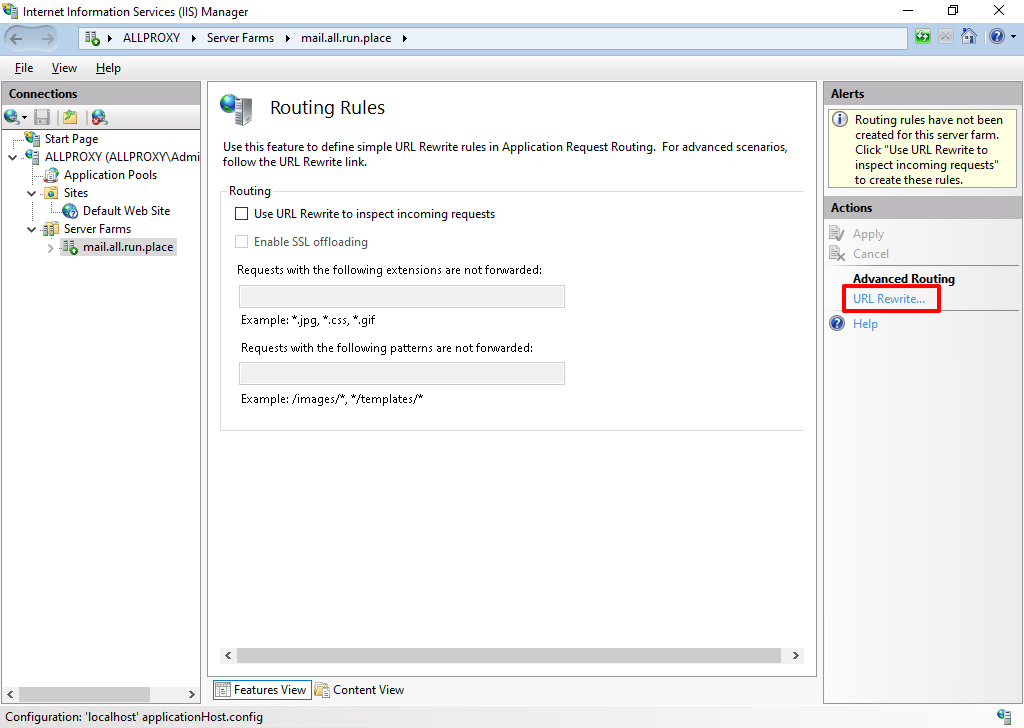
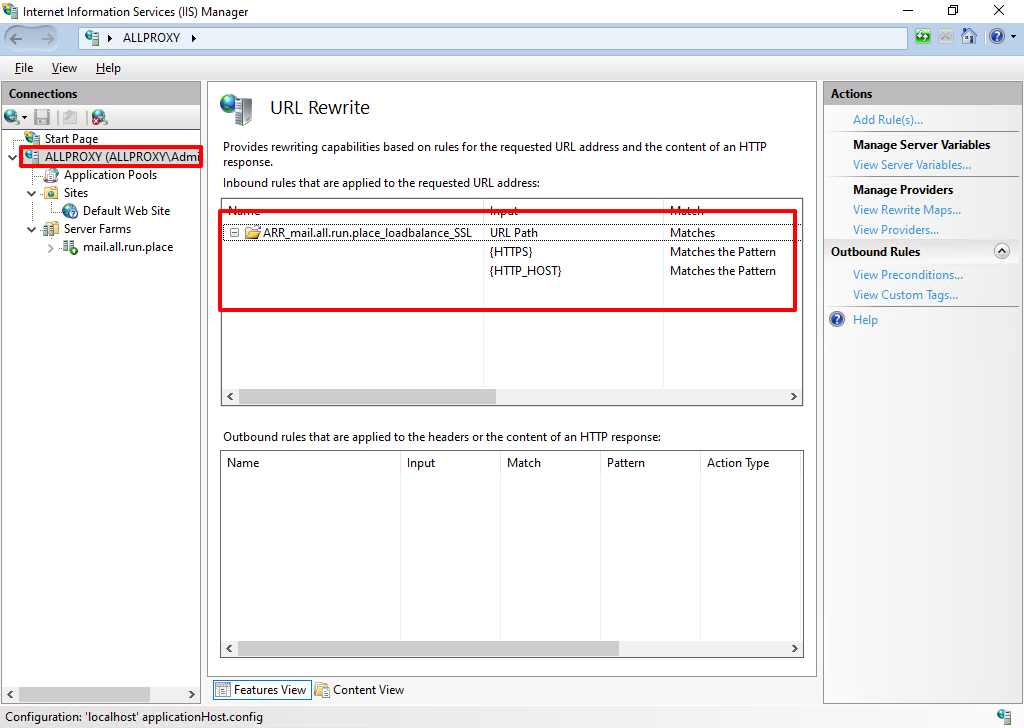
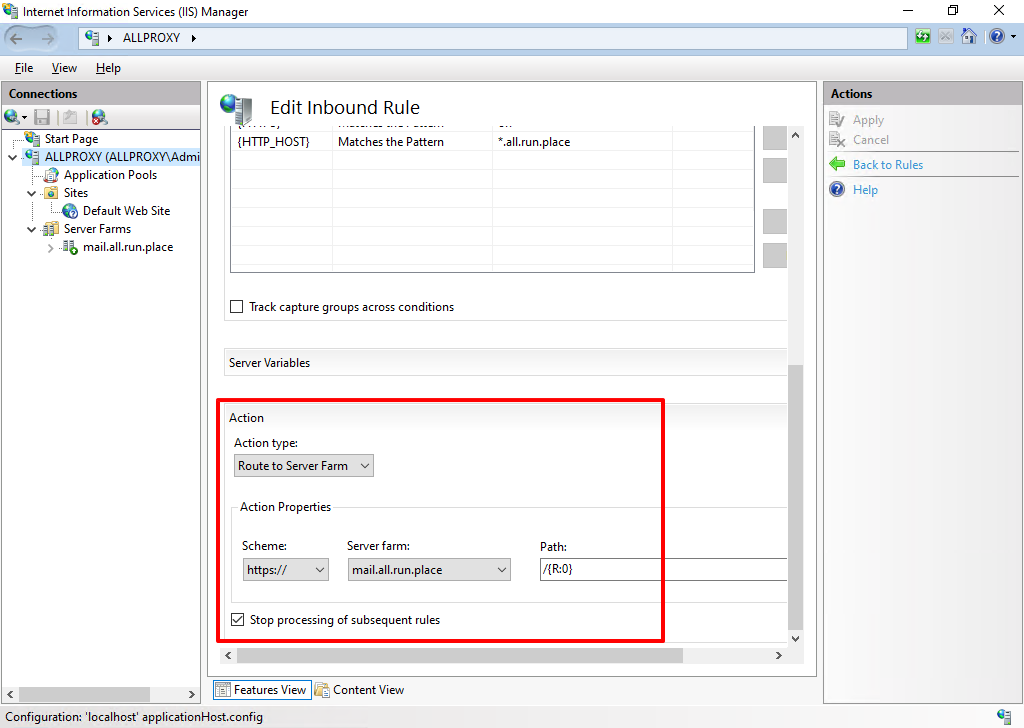
I already add the URL Rewrite rule here. Let’s take a look for the details.
If the request URL matches (all urls), check the two conditions: is it https? and is the host matches with the pattern(.all.run.place)?
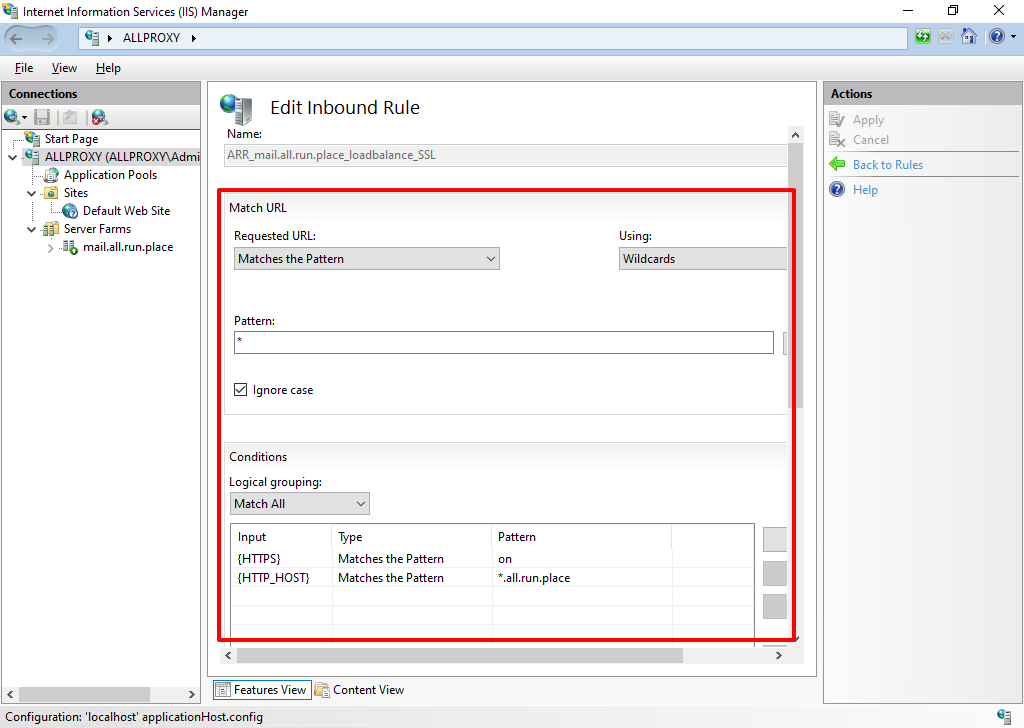
If the prerequisites meets, the requests are redirected to the server farm with the https.
2. Logs
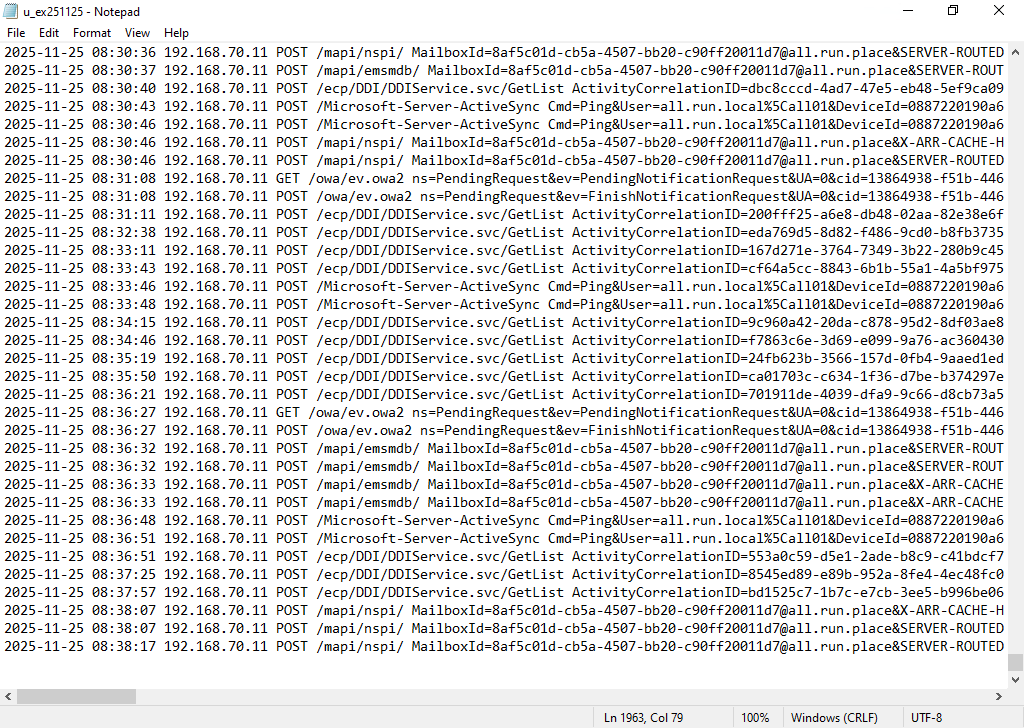
All the logs are in this path:
- C:\inethub\logs\LogFiles\W3SVC1
e.g.
3. Warning
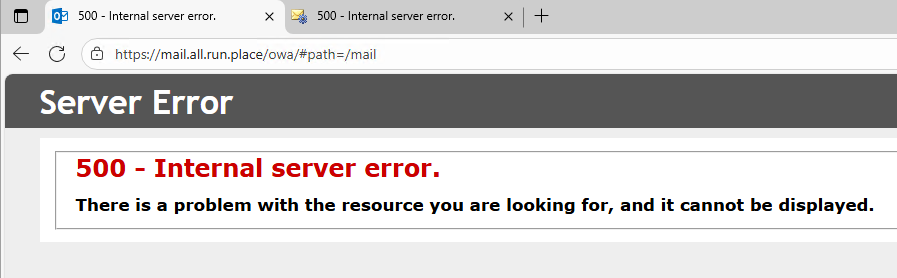
If the inbound rule is not match exactly with the requested URL, you will encounter 500 error like below. This is quite tricky if you address this kind of LB.
4. Test
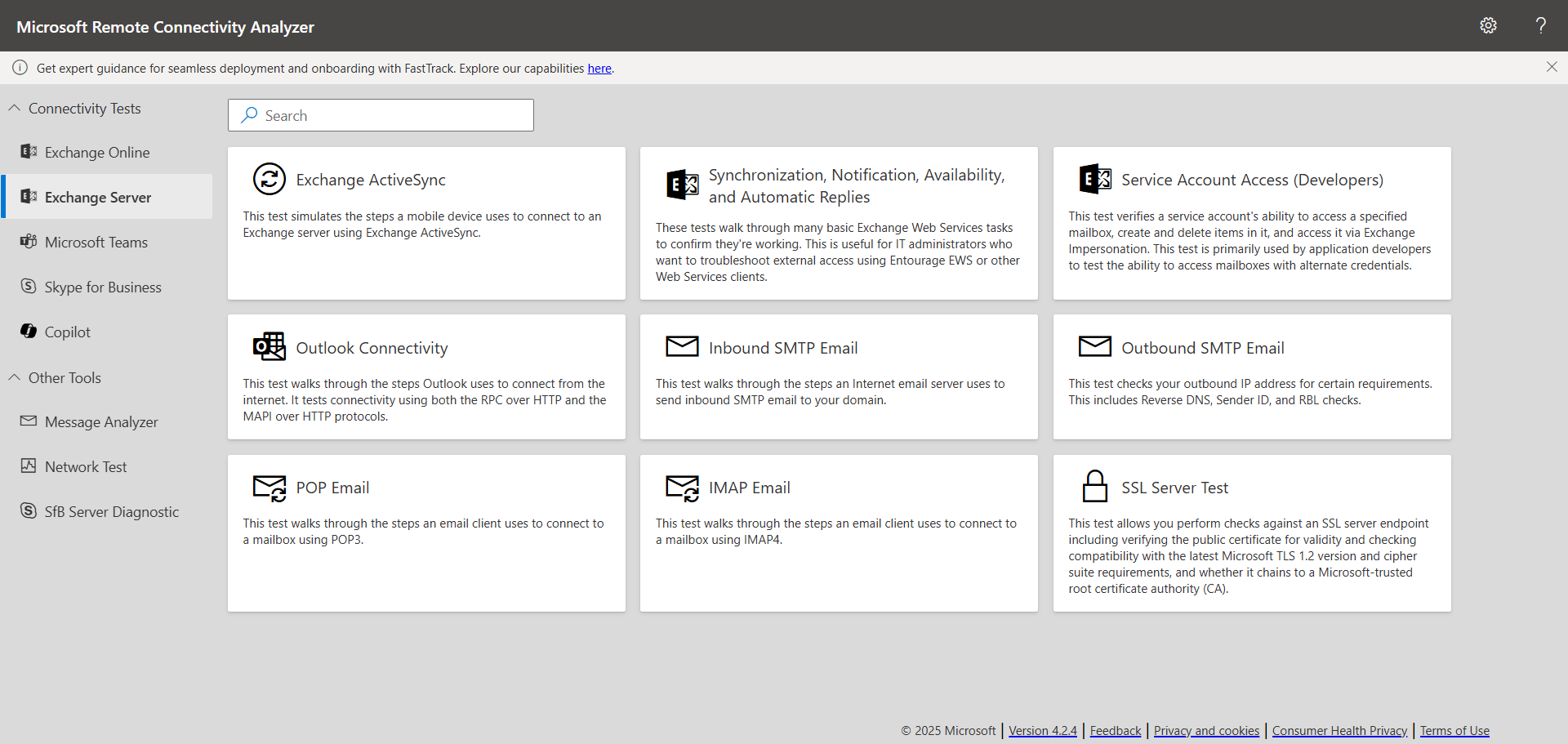
Do the test for the exchange server services.
https://testconnectivity.microsoft.com/tests/exchange
Result
This is so customisable so it’s too difficult to handle… Good luck.
Leave a comment