
[intune] scripts and remediations deleting user folder
Summary
This task is intended to delete the user folder from the public PC, and the login account is a public account as well.
Prerequisite
You should turn on the Windows license verification in the intune.microsoft.com
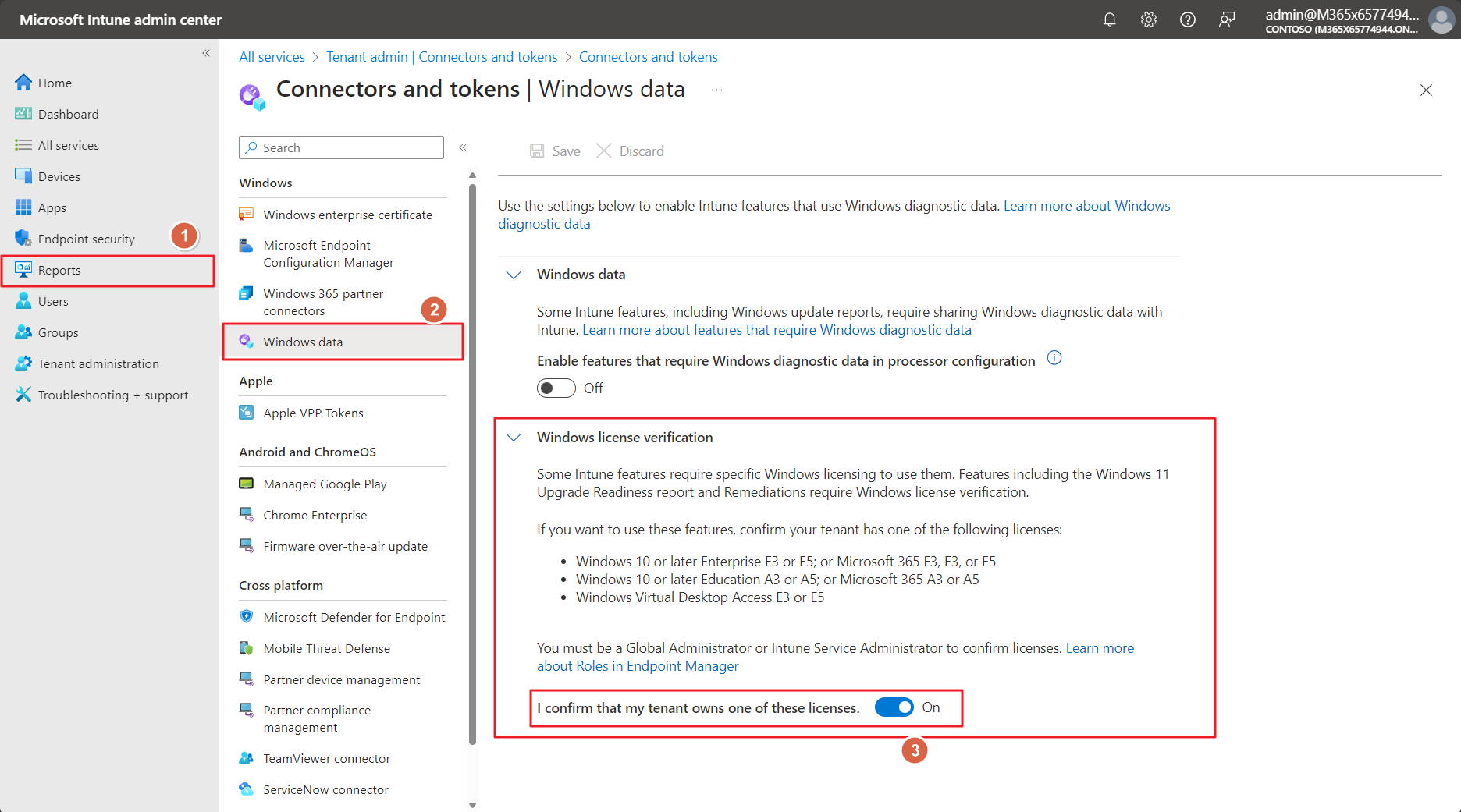
Ref) https://learn.microsoft.com/en-us/mem/intune/protect/data-enable-windows-data#manage-windows-data-configurations
Process
1. Create Remediations
Go ‘intune.microsoft.com’ > Devices > Scripts and remediations
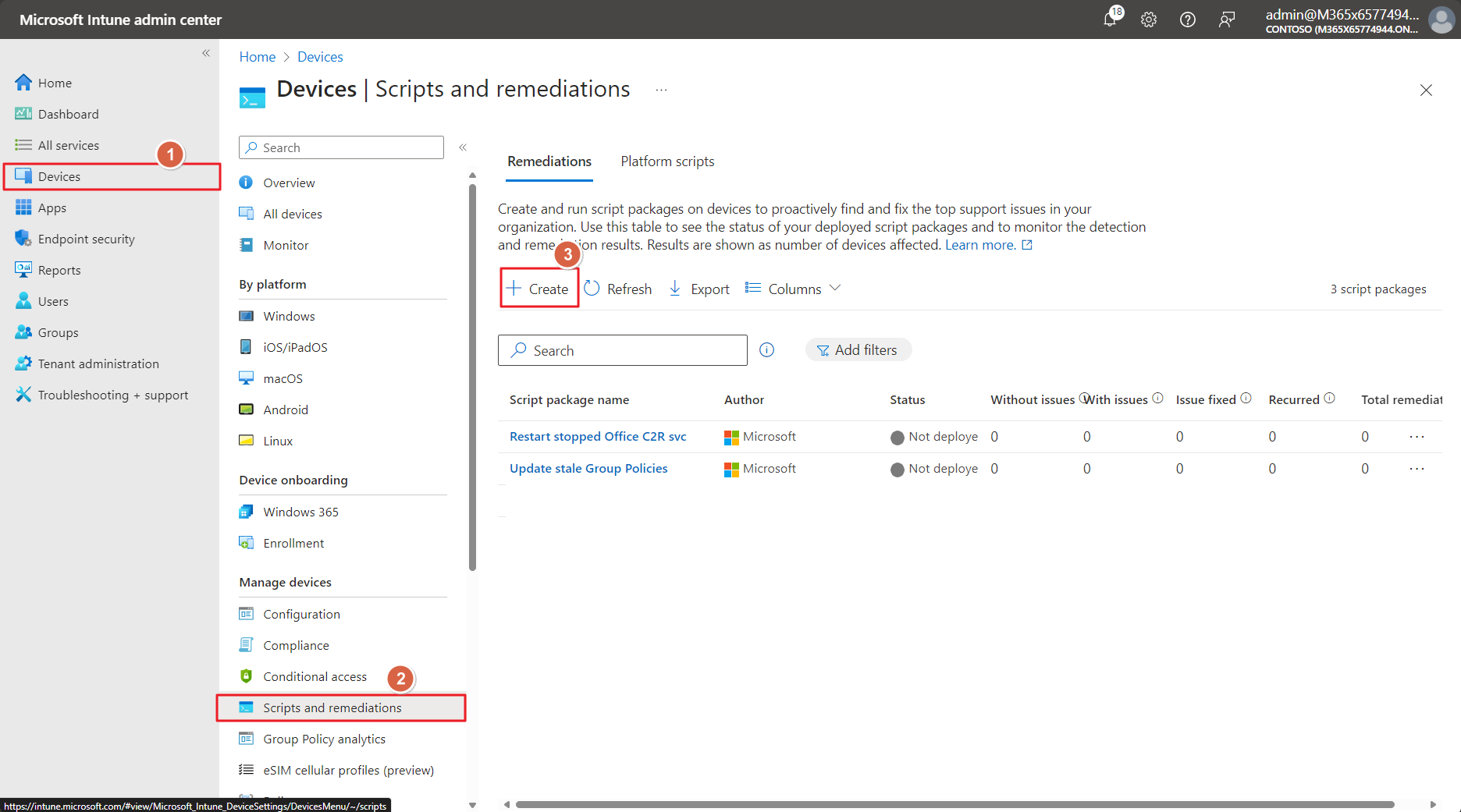
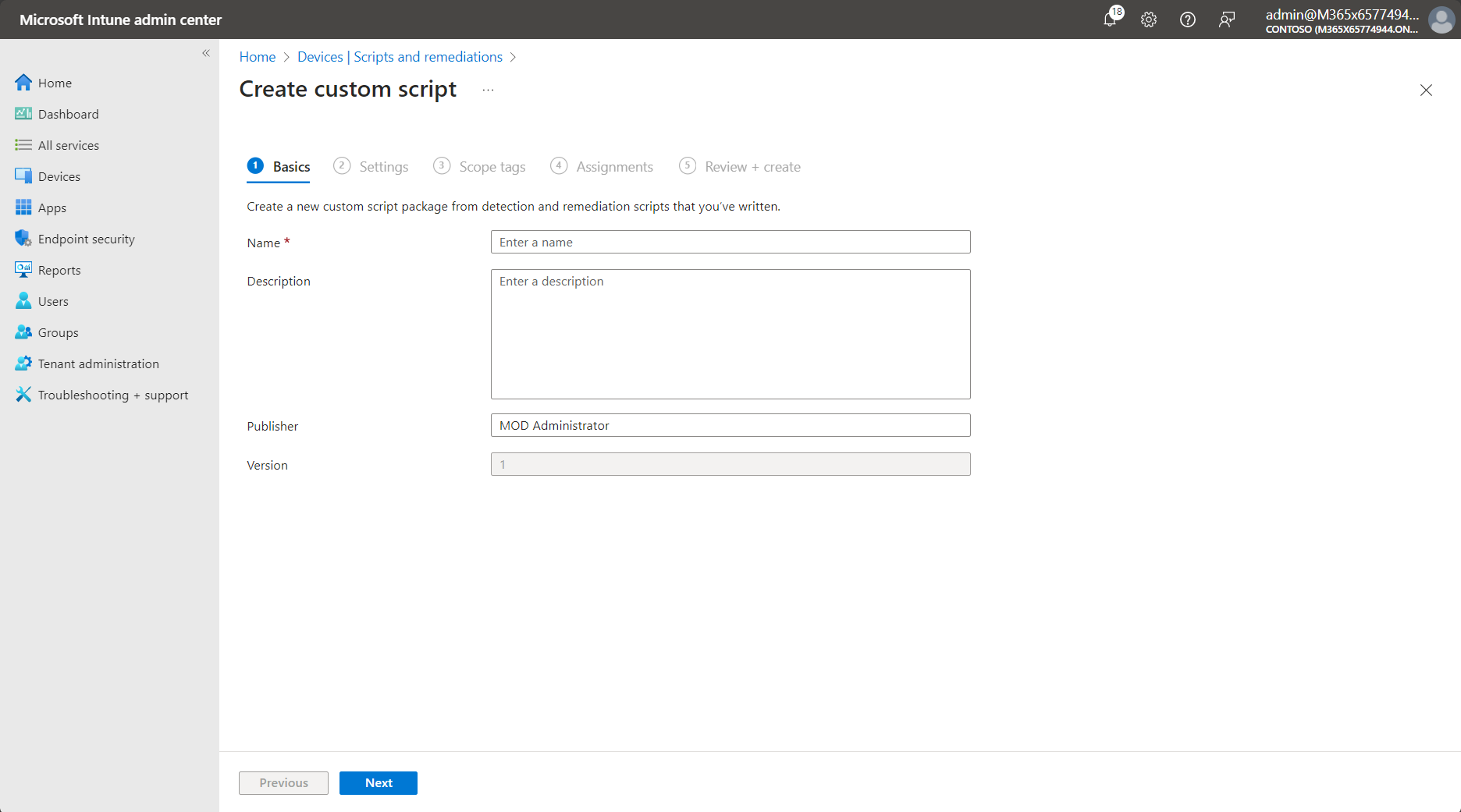
2. Set name properly
3. Upload the Detection scripts and Remediation scripts
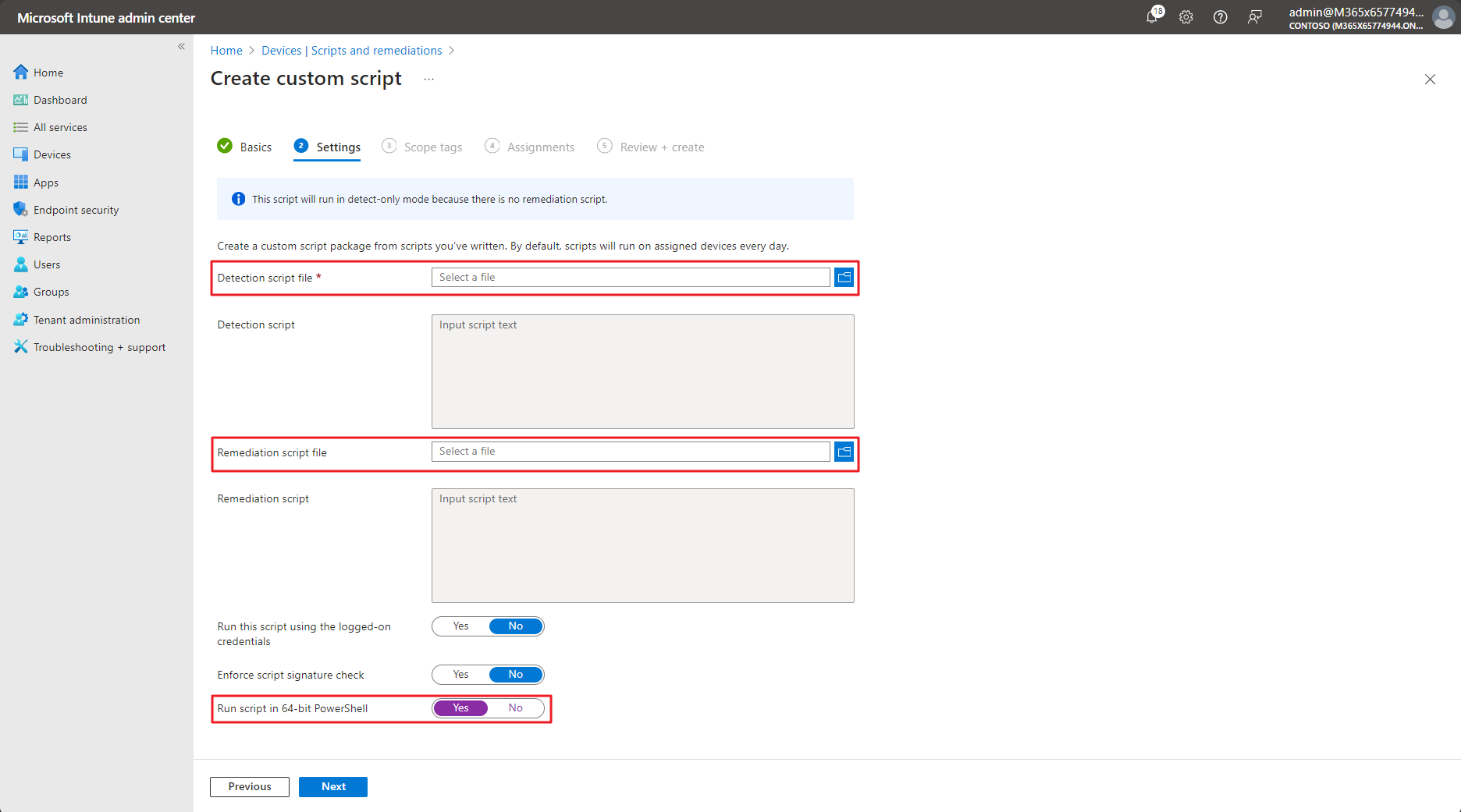
[ Detection script]
# Detection script
$usersDirectory = "C:\\Users"
$specificUserFolders = @("cakeTest", "Public")

# Get a list of all user folders under C:\Users
$userFolders = Get-ChildItem -Path $usersDirectory | Where-Object { $_.PSIsContainer }

# Exclude the specific user folders
$userFoldersToDelete = $userFolders | Where-Object { $specificUserFolders -notcontains $_.Name } | Select-Object -ExpandProperty Name

# Print the list of user folders to be deleted
Write-Host "User profiles to be deleted:" $userFoldersToDelete -ForegroundColor Red

# Check if there are any user folders to be deleted and set exit code accordingly
if ($userFoldersToDelete.Count -gt 0) {
    Exit 1
} else {
    Exit 0
}
If you excute the ‘Remediation script’, you should throw the exit code as ‘1’.
[ Remediation script]
# Detection script
$usersDirectory = "C:\\Users"
$specificUserFolders = @("cakeTest", "Public")

# Get a list of all user folders under C:\Users
$userFolders = Get-ChildItem -Path $usersDirectory | Where-Object { $_.PSIsContainer }

# Exclude the specific user folders
$userFoldersToDelete = $userFolders | Where-Object { $specificUserFolders -notcontains $_.Name } | Select-Object -ExpandProperty Name

# Print the list of user folders to be deleted
Write-Host "User profiles to be deleted:" $userFoldersToDelete -ForegroundColor Red

# Remediation script
function Delete-UserProfiles {
    param (
        [ValidateNotNullOrEmpty()]
        [string[]]$userFolders,

        [ValidateNotNullOrEmpty()]
        [string]$directory
    )
    foreach ($userFolder in $userFolders) {
        $userFolderPath = Join-Path $directory $userFolder
        try {
            Remove-Item -Path $userFolderPath -Recurse -Force
            Write-Host "User profile folder deleted: $userFolderPath"
        } catch {
            Write-Host "Error deleting user profile folder ${userFolderPath}: $($_.Exception.Message)"
        }
    }
}

# Call the remediation function
Delete-UserProfiles -userFolders $userFoldersToDelete -directory $usersDirectory

# Print a success message
Write-Host "User profiles under C:\\Users (except for the specific user folders) have been deleted." -ForegroundColor Red
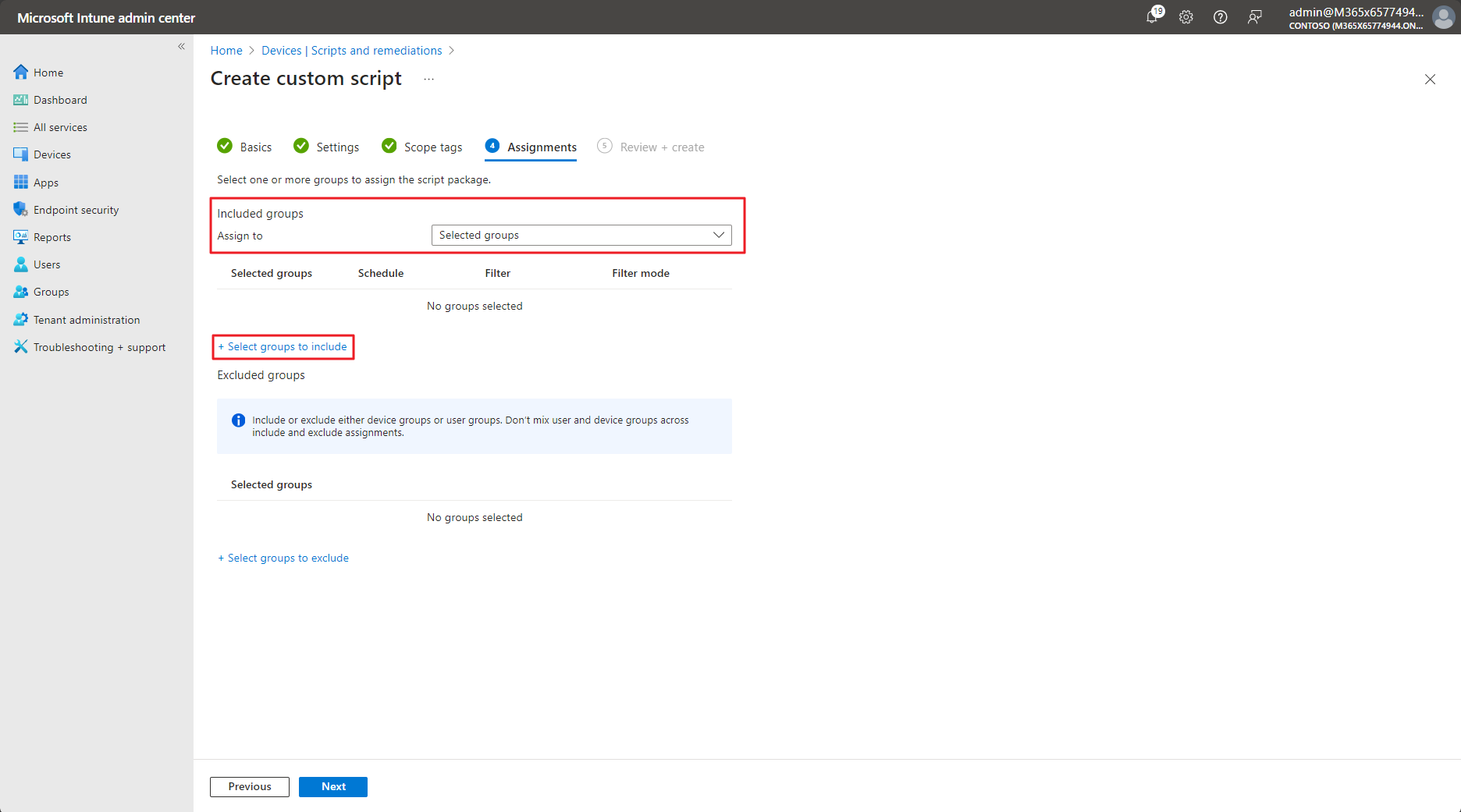
6. Assign Group
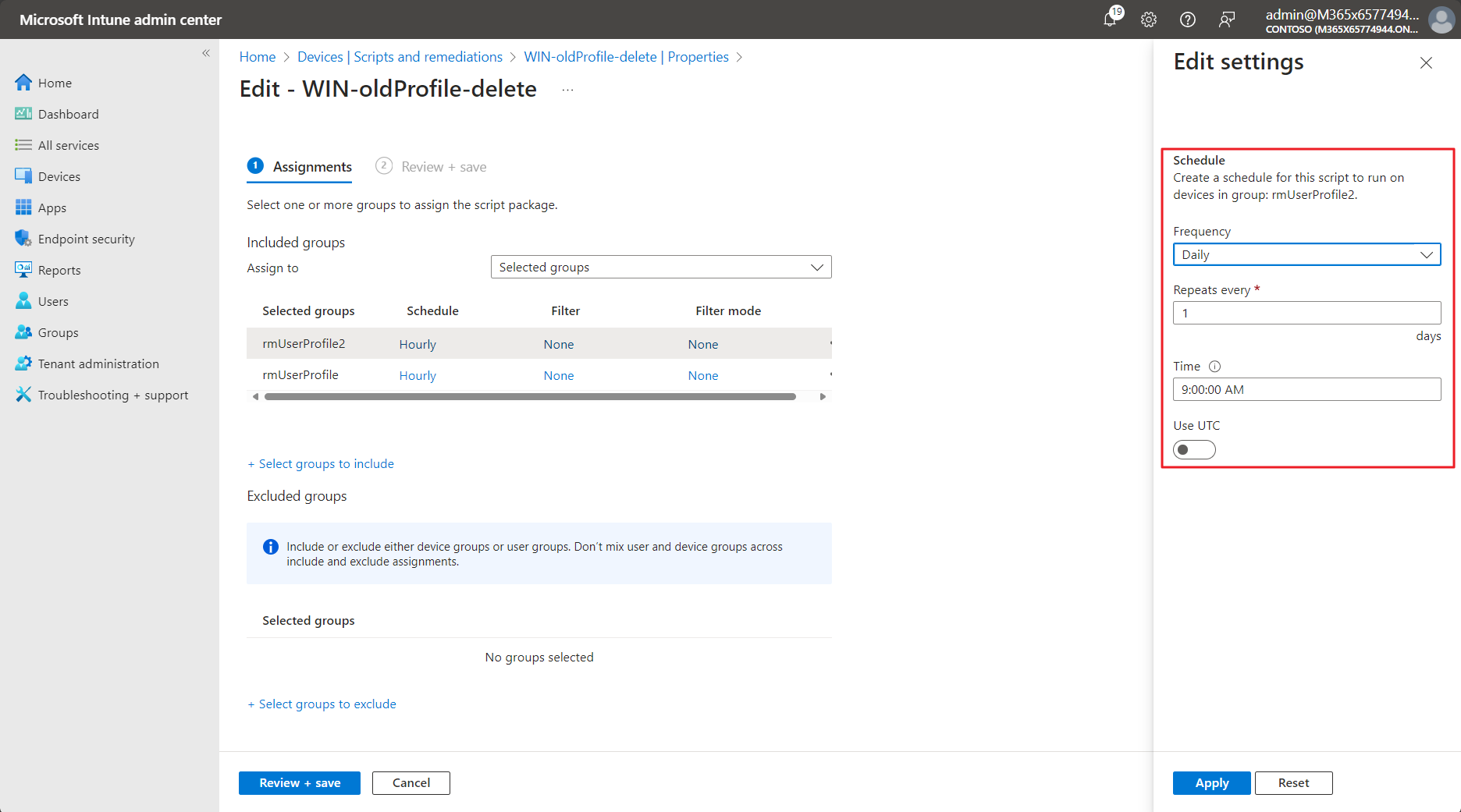
7. Scheduling
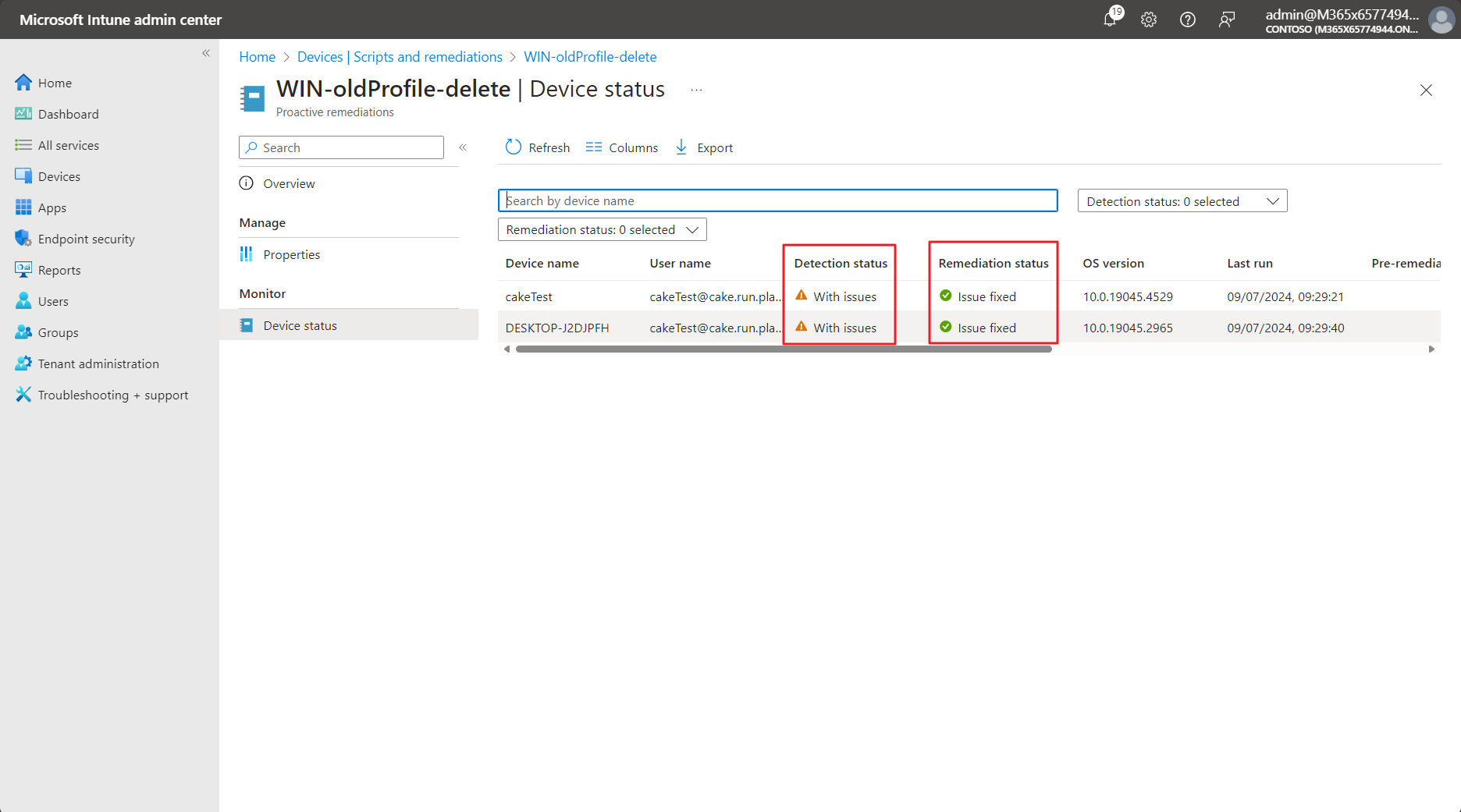
8. Checking the Devices status
Notice
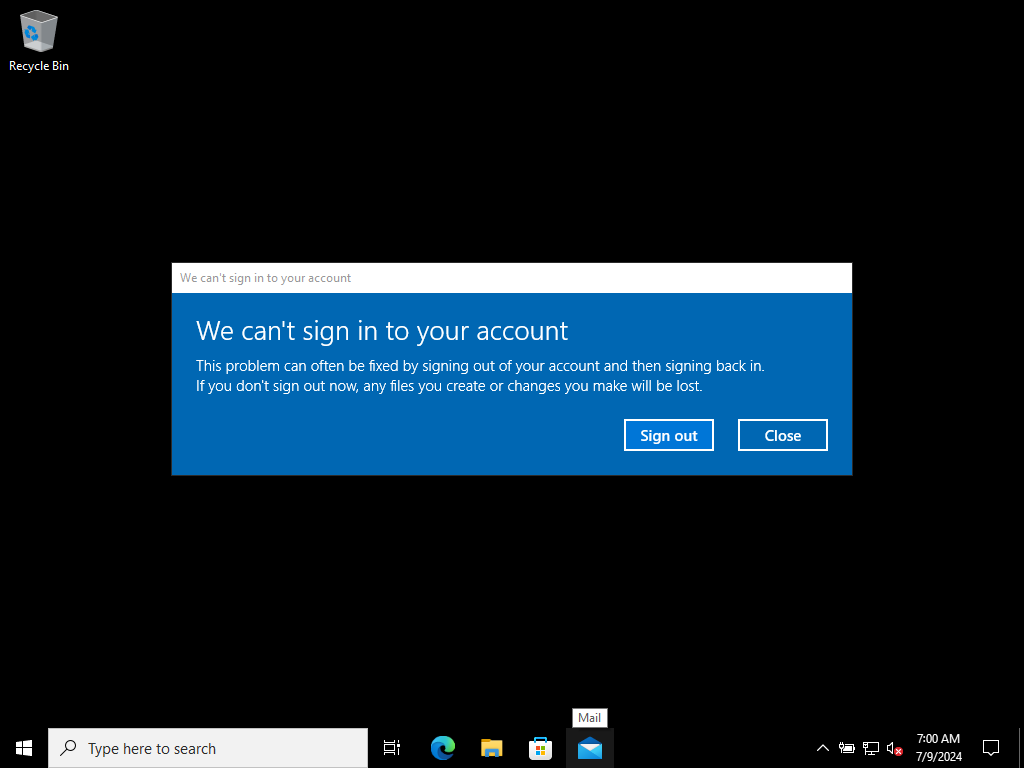
Once you delete the user folder and log on again with the user account, you will encounter this error message. You can click the ‘Close’ button to continue, and you will log on to this computer with a temporary user profile. This happens because even though you deleted the user folder, the Windows OS still remembers your account. To fix this or to restore the default user profile, some registry modifications are required.
Reference
https://learn.microsoft.com/en-us/mem/intune/fundamentals/remediations#prerequisites https://scloud.work/user-profile-clean-up-intune/
Leave a comment